
This article explains how to reorganize a project.
In OnePlan, there are two way to reorganize a project from on program to another program.
Option 1:
1. Select Prioritize on the top banner "..." in Portfolio page.
2. Drag the project to the place you want it to place.
NOTE: Remember to click Prioritize icon again after you finish changing the portfolio structures.
Option 2:
Here we use on of the project from DS as example:
1. Click the hamburger menu next to the project name and select Reorganize
2. Click the little pencil icon next to Parent Plan to change the program for the project
3. Select the Program you want the project move to, and click select
4. Click Reorganize to save the changes
After all this, project got moved to MAX program
Why Reorder feature not work?
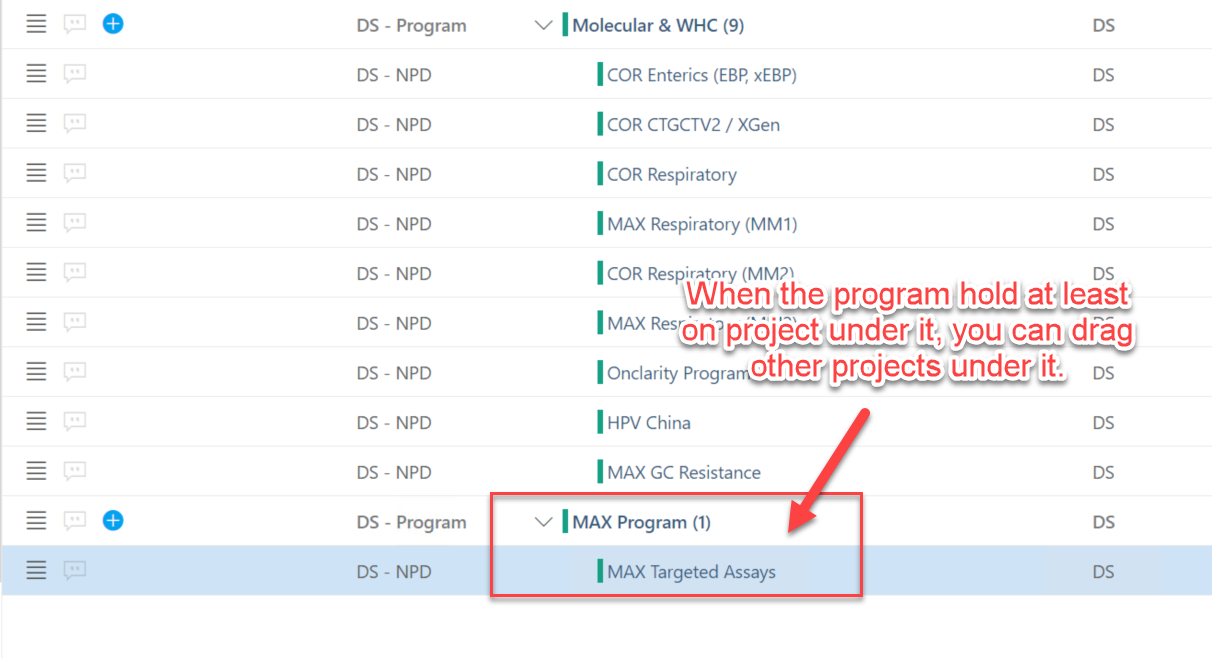
When you using the reorder icon, if you want to move a project to a new program(here we use the example above: MAX Program, which is a new platform that with no project under it), you should ensure the program(MAX Program) has at least one project under it. The reason why you cannot move the project under a new program is that there is nothing under the new program, and OnePlan think you are going to move the project(as a program) under the new program which not match with what the hierarchy structure is.
Tips:
1. When you create a new Program level, use the hamburger menu (reorganize feature) to move one project under the Program level.
2. Then you can use reorder icon on the top banner to move other projects which you want to include in that Program.
Comments
0 comments
Please sign in to leave a comment.